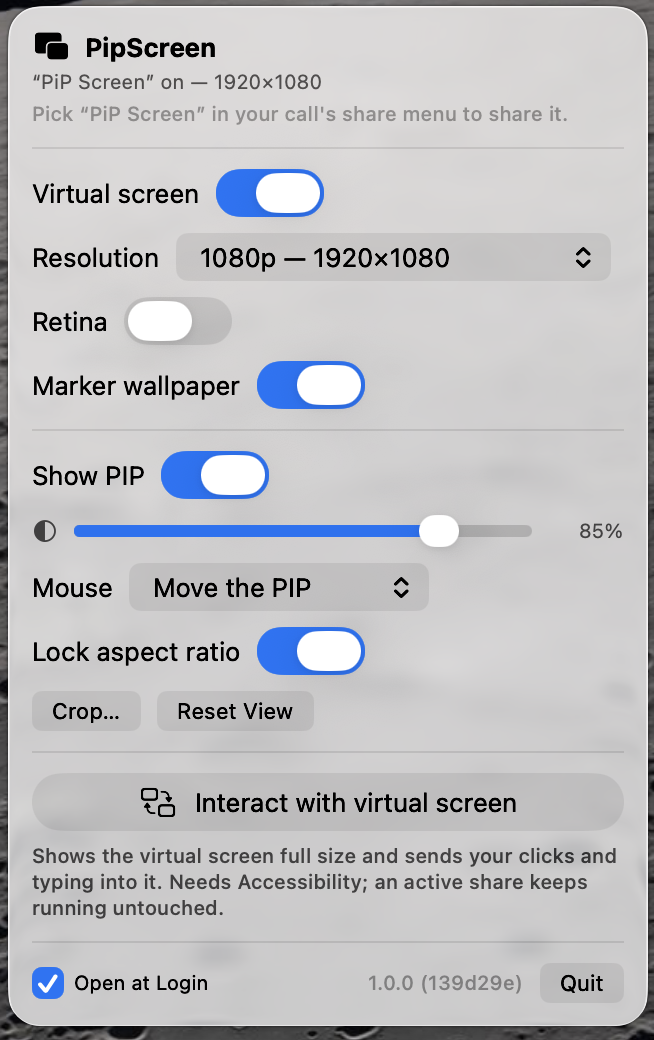
The display that isn't there.
A menu-bar app that gives your MacBook a virtual second screen, visible through a floating picture-in-picture window. Built for working — and presenting — on the road, with nothing in your bag but the laptop.
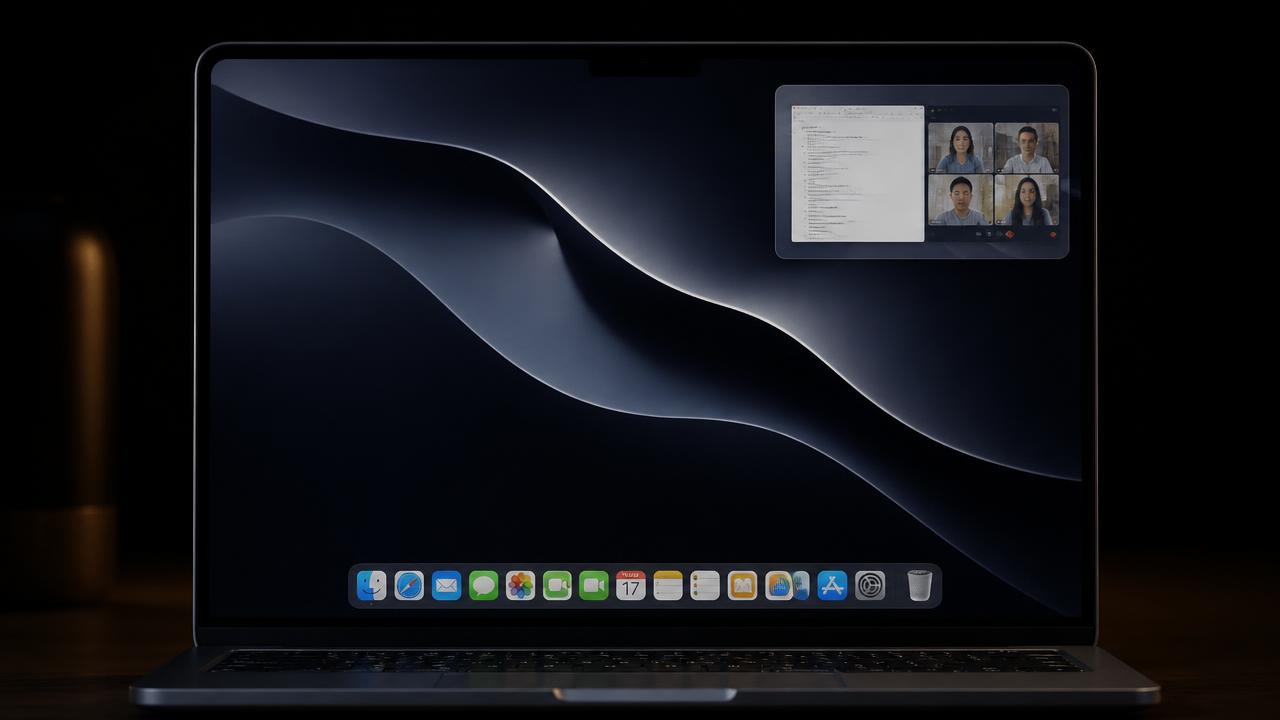
What a virtual second display gives you.
Virtual display
One click creates a real macOS display called “PiP Screen”. It shows up in System Settings › Displays, you drag windows onto it like any monitor, and it appears as its own named screen in the share pickers of Zoom, Meet, and Teams.
No screen-share mix-ups
The PIP window is excluded from screen capture at the OS level. Share your main screen and viewers never see the overlay; share “PiP Screen” and they see only what you put there. An optional marker wallpaper makes it unmistakable in share-picker thumbnails.
PIP preview
A floating always-on-top window mirrors the virtual screen live. Resize it, zoom and pan, crop to just the region you care about, dial opacity down to a ghost overlay, make it click-through — or flip it to click-in.
Full control, no blinking.
Need to actually click and type on the shared screen? One toggle shows the virtual screen full size on your display — a live, capture-proof viewer — and forwards your clicks, drags, and scrolls into it at the spot you point at. Your real pointer never leaves your screen, and clicking a window there focuses it, so typing flows natively.
- Nothing about the display setup changes — an active share never blinks
- Adjustable opacity, crop, zoom and pan on the PIP window
- Requires Accessibility permission for synthetic events